Smart Appliance Troubleshooting Steps—until they stop responding, disconnect from Wi-Fi, or refuse to work properly. At Appliance Medic Pro, many smart appliance service calls turn out to be simple setup, connectivity, or software issues that can be resolved quickly with the right steps.
Follow these professional troubleshooting steps to identify the problem safely.
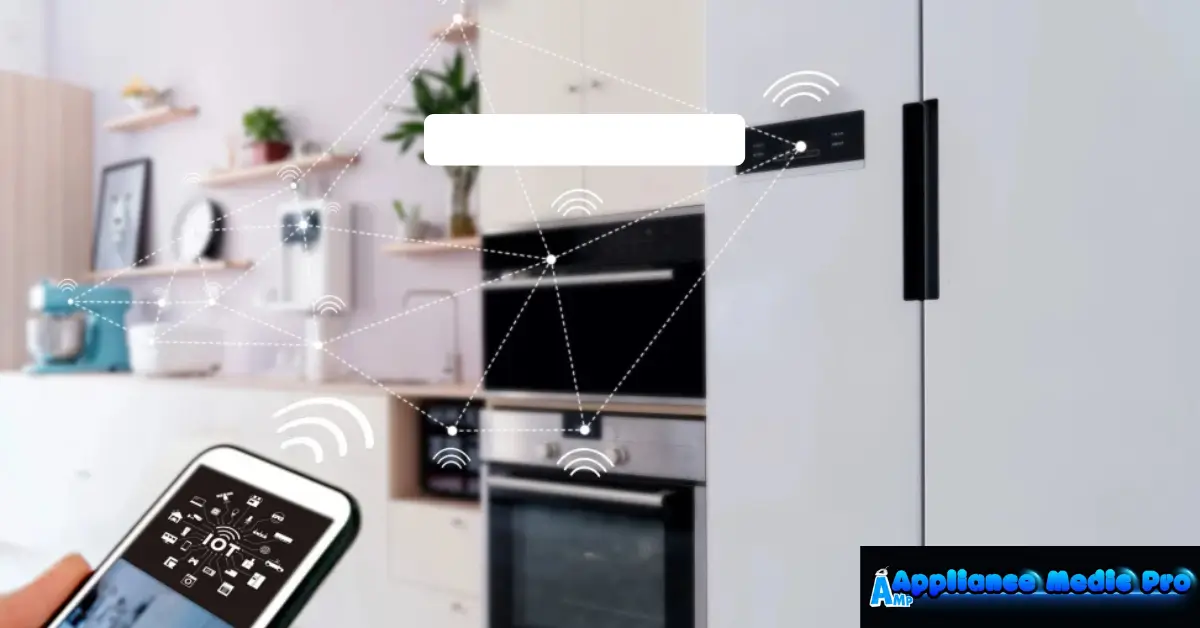
Common Smart Appliance Troubleshooting Steps: Problems
We most often see:
-
Appliance not connecting to Wi-Fi
-
App not responding or crashing
-
Appliance offline in the app
-
Commands delayed or ignored
-
Smart features not working, but manual mode works
Step-by-Step Smart Appliance Troubleshooting
Step 1: Check Basic Power First
Before focusing on “smart” features:
-
Ensure the appliance is fully powered
-
Check breakers or GFCI outlets
-
Inspect the power cord and plug
Many issues are simple power interruptions.
Step 2: Restart the Appliance (Most Effective)
From technician experience, this solves many issues.
-
Turn the appliance off
-
Unplug it for 2–5 minutes
-
Plug it back in and power on
This clears temporary memory errors.
Step 3: Restart Your Wi-Fi Router
Smart appliances rely heavily on stable Wi-Fi.
-
Restart the modem and router
-
Wait until the internet is fully restored
-
Ensure 2.4 GHz Wi-Fi is enabled (many appliances don’t support 5 GHz)
Weak signals are a top cause of disconnections.
Step 4: Check App and Software Updates
Outdated software causes compatibility problems.
-
Update the appliance app
-
Update your phone’s operating system
-
Check for appliance firmware updates in the app
Updates often fix known bugs.
Step 5: Reconnect the Appliance to Wi-Fi
If the appliance shows “offline”:
-
Remove it from the app
-
Put the appliance in pairing mode
-
Re-add it using the correct Wi-Fi network
Be sure you’re entering the correct password.
Step 6: Verify Network Settings
Smart appliances typically require:
-
WPA2 security
-
No VPN enabled during setup
-
No network isolation settings
-
Strong signal near the appliance
Mesh Wi-Fi systems sometimes require additional setup.
Step 7: Test Manual Operation
If smart features fail but manual controls work:
-
The issue is likely connectivity or software
-
Hardware components may still be fine
This helps narrow down the problem.
Step 8: Check Error Codes or App Messages
Many smart appliances display:
-
Error codes
-
Connection warnings
-
Diagnostic messages
Record these before calling for service.
Step 9: Reset the Appliance (Last DIY Step)
A factory reset can help, but it will erase settings.
Only reset if:
-
Other steps failed
-
Manufacturer instructions are followed exactly
Improper resets can cause new issues.
When to Stop Troubleshooting and Call a Pro
Contact Appliance Medic Pro if:The appliancee won’t power on at all
-
Error codes persist after reset
-
Smart and manual functions both fail
-
Electrical smells or overheating occur
-
Appliance is still under warranty (to avoid voiding it)
Common Smart Appliances We Service
-
Smart refrigerators
-
Smart washers and dryers
-
Smart ovens and ranges
-
Smart dishwashers
-
Smart HVAC systems
How to Prevent Smart Appliance Issues
From real technician experience:
-
Keep software updated
-
Use stable home Wi-Fi
-
Avoid power surges (use surge protectors)
-
Don’t ignore early connection issues
-
Register appliances with the manufacturer
Frequently Asked Questions
Q: Why does my smart appliance keep disconnecting from Wi-Fi?
A: Weak signal, router settings, or firmware issues are usually the cause.
Q: Are smart appliances harder to repair?
A: They require more diagnostics, but many issues are software-related.
Q: Can a power outage damage smart features?
A: Yes. Power surges can affect control boards.